
PureScore guides · Practical guide
How to follow live football scores without gambling ads
Updated 19 November 2026
Start with a scores service that explicitly excludes gambling advertising, then check its match screens, links and notifications separately. Save a direct route to the football you follow and silence promotional alerts from your old app. Hiding odds alone does not establish that a service is free of gambling promotions. The steps below help you assess that difference and build a matchday setup you can actually use.
1. Decide what you want to remove
No odds means betting prices are not displayed in the view or mode being described. An ad-free tier promises to remove the advertising covered by its terms; that label alone does not establish whether built-in betting features, affiliate links or sponsored content are excluded. A broader no-gambling-promotion requirement can also include bookmaker links, sponsorship placements and marketing messages. Decide which of those you mean before choosing a service.
| What you want | What to check | What that check does not establish |
|---|---|---|
| No betting odds | Match details, league screens and the odds setting | Whether adverts, betting links or promotions remain |
| No gambling advertising | The publisher’s explicit policy and the surfaces you use | That a single clean screen proves every session, region or notification is clean |
| Fewer interruptions | In-app alert choices and your phone’s notification settings | Whether advertising remains when you open the app |
| Less exposure across football | Scores, news, video, emails and other channels separately | That changing your scores app removes sponsors from broadcasts or other websites |
Write down your boundary before comparing services. For example: “Scores and line-ups for my team, with no betting links or gambling promotions, and no push notifications.” That is a testable requirement. “A cleaner app” is much harder to assess.
2. Check a service before making it your matchday habit
- Find its written position on gambling advertising. Look for an explicit statement, not just a screenshot without an advert. Check whether the statement covers the web service, the app and the country in which you use it. If the scope is unclear, treat it as unverified.
- Open the surfaces you would actually use: the fixtures list, one match page, a competition page and any news or video section. Look for betting navigation, odds, bookmaker promotions and links that lead to a betting service. Do not place a bet or create a betting account to investigate a link.
- Inspect the settings. If there is an odds switch, change it and revisit those screens. Record what disappears and what remains. An unlabeled or unexplained promotion is a reason to investigate, not evidence that the switch removed everything.
- Check notification and email preferences separately. A quiet match page does not establish what the service can send later. Start with alerts off, then enable only a category you understand if you need it.
- Revisit the setup during a match you follow. Compare what you see with the policy and your own requirement. This is a limited check of your experience, not a comprehensive audit of every advert the service might serve.
Read the policy
Establish what the publisher explicitly commits to, and where it applies.
Inspect your route
Check the actual fixture, match and content screens you will use.
Separate the channels
Review alerts and emails as well as what appears inside the service.
Keep or replace it
Use your written requirement to decide; do not turn an unknown into a clean bill of health.
This is an editorial checklist, not a certification scheme. Each step answers a different question; completing one does not replace the others.
Official does not automatically mean free of gambling promotion. UEFA’s announcement for the 2024–27 men’s Champions League sponsorship says bet365 receives exposure through the competition’s digital channels. That is why this guide does not recommend UEFA fixture pages as a verified gambling-free alternative. It also does not establish what every individual UEFA page shows to every visitor. Read the scope of UEFA’s sponsorship announcement.
3. Choose a route that fits how you follow football
| Your need | A practical setup | Check before relying on it |
|---|---|---|
| Occasional half-time or full-time checks | A bookmark to the relevant team, competition or fixtures page; alerts off | The page retains the right team or date and covers your competition |
| Immediate score updates | A provisional choice supported by its policy, your platform/region screen checks and an alert test | Whether those categories exist and whether promotions can be excluded |
| Several clubs or competitions | A saved fixtures view or supported favourites list | That all required competitions are covered; distinguish sign-in features from public ones |
| A competition your main service misses | A separate source assessed against the same policy and screen checklist | Its own gambling policy and live-update coverage; do not assume the organiser’s site passes |
Do not pay for an ad-free tier or install another app solely because its name sounds suitable. Establish what it changes, check your competition and confirm current availability first. If a provider cannot substantiate a requirement that matters to you, choose a different route rather than describe the uncertainty as a verified feature.
4. Save direct access on your phone
Open the exact page you want to return to before saving it. A team’s fixtures page is usually a more useful destination than a promotional homepage. Reopen the saved entry once and check what it actually loads: some sites keep team or date selection only in the browser, rather than in the URL.
- iPhone, Safari on iOS 27: open the chosen page. Tap Page Menu, then Share; with the Top or Bottom tab layout, use the Share button directly. Choose Add to Home Screen. If it is missing, scroll to Edit Actions and add that action. Choose Open as Web App if you want that mode, then tap Add. Older versions and layouts can differ.
- Android, Chrome: open the chosen site. For a supported web app, open More, choose Install and create shortcut, then Install, and complete the displayed prompts. Use the option your Chrome version actually presents; not every site has the same installation support.
- Safari bookmark fallback, using Apple’s iOS 27 instructions: open the page, tap Page Menu, choose Add Bookmark to, select a location and Save. In Top or Bottom layouts, holding Show Bookmarks offers Add Bookmark. To reopen, go to Safari’s start page and use Show Bookmarks, or use that button directly in Top or Bottom layouts, then select the saved entry.
- Chrome bookmark fallback on Android: open the page, open More and choose Add to bookmarks. To reopen it, use More, Bookmarks, choose its folder and tap the entry. With the address bar at the bottom, swipe up on the bar, then tap Bookmarks.
- Reopen whichever entry you saved and check the team, date and competition it loads. A website shortcut is not a native app and does not establish offline scores, broader competition coverage or notification delivery.
Use the instructions for your device rather than guessing at a menu that has moved. Apple’s Safari web-app instructions.
For Android’s supported web-app installation flow: Google’s Chrome instructions.
For saving and finding a browser bookmark: Apple’s Safari bookmark instructions.
The Android Chrome bookmark fallback is documented in Google’s create and find bookmarks guide.
5. Remove the interruptions you do not want
First decide whether you need alerts at all. If you normally check at half-time, a direct bookmark may meet the whole requirement. If you want goals immediately, distinguish a service’s in-app alert choices from the phone-level permission that allows it to send notifications.
If you want goal alerts, first confirm that the provider documents them for the team, competition and platform you use. Select the supported team or match in its own controls and enable only the wanted alert category where that choice exists. Allow delivery in the phone or browser permission settings described below. During a fixture, check whether an event that should trigger the chosen alert actually produces it. This is a delivery check, not a measured speed comparison. If goal alerts and marketing share one switch, or the controls are unclear, leave alerts off and use the saved route for manual checks instead.
- In the old scores app, switch off any promotional or match categories you no longer want, where those controls exist. Do not assume a category is free of promotions unless its description and actual behaviour establish that.
- On iPhone, open Settings, then Notifications, choose the app and switch off Allow Notifications to stop that app’s notifications. This is the broad control; it does not promise that every app offers separate goal and marketing switches.
- On Android, open Settings, then Notifications and App notifications, choose the app and turn its notifications off. Some devices and apps expose categories you can manage individually. Names and available controls vary by device.
- If you use an installed web app as well as a native app, inspect the relevant notification entries rather than assuming one switch controls both. Review email subscriptions separately through the service’s own preferences.
- After making a change, use the next fixture you follow as a check: did the alerts you wanted arrive, and did anything unwanted appear? Investigate a mismatch before making the setup your default.
Device-level controls and their limits are described in Apple’s notification settings guide.
Android’s manufacturer and category differences are covered in Google’s notification help.
A plain bookmark may not create an app entry in phone settings. Decline a site’s notification request if you want no alerts. In current Chrome on Android, a request can be denied through Settings and Don’t allow. To inspect an existing permission, open the site, then More, Site controls and Permissions, and change Notifications where available. For a Safari Home Screen web app, check its entry by name under Settings, then Notifications if notification permission was previously granted. If you never granted permission, there may be no entry to find; decline any request to keep this setup quiet. Google documents Chrome’s website notification controls and version-dependent options.
Apple’s WebKit team explains when a Home Screen web app can request push permission and appear in notification settings. Read the WebKit explanation.
6. Put it together: one team, quiet phone, quick score checks
Suppose you follow one Premier League team, want the score at half-time and full-time, and want neither gambling promotions nor push notifications. The following candidates are hypothetical decision examples, not reviews of real providers.
Candidate A has an odds switch. After turning it off, the prices disappear but a bookmaker link remains on the match page. Your requirement excludes bookmaker links, so Candidate A fails even though the odds setting worked. That finding is a decision, not a reason to redefine the requirement.
Candidate B has an explicit policy covering your app or web service and region, covers the team’s competition, and the screens you inspect meet your boundary. That gives you a basis for a limited, provisional choice, not proof about every future screen or notification.
- Save Candidate B’s team-fixtures route if it has a stable link. Reopen it immediately and confirm that it returns to the intended team; otherwise save a stable landing page and record the selection required.
- Confirm that notifications are off for the old native app. For the new route, decline any site notification request and check existing website permission where your browser supports it. A bookmark-only setup may have no separate app entry: use the browser controls explained above instead. Review email preferences separately.
- At half-time, reopen the saved entry, check the date, team and match status, and inspect the match route for promotions that breach your boundary. An empty list or reset filter sends you to troubleshooting. An unwanted bookmaker promotion rules the candidate out under this requirement.
- At full-time, reopen the same route, check the displayed match status before treating the score as final, and repeat the promotion check. If the access, coverage or advertising check fails, repair that specific issue or reconsider the provider.
The setup meets this example’s requirement only when the intended match is reachable, the inspected route meets the advertising boundary at both checkpoints, and the relevant native-app or website notification permission is configured as intended. A quiet matchday does not certify future advertising or messages. If immediate goal alerts are part of your requirement, you need documented support, appropriate permission and a separate delivery check.
7. Troubleshoot the football access, not just the advertising
| What happens | What to check | Next action |
|---|---|---|
| The list is empty | Selected date, competition coverage and whether the service reports a loading or connection problem | Choose the intended date and check coverage; an empty list is not evidence that no matches exist worldwide |
| The bookmark returns to the wrong view | Whether team/date choices are encoded in its URL or saved only in that browser | Save a stable page or record the selection you must make; test by reopening it |
| Promotional alerts continue | Which app, installed web app or email sender actually sent the message | Change that specific permission or subscription; hiding odds inside another screen will not address it |
| A wanted goal alert never arrives | The service’s documented support, the chosen alert category and device permission | Check those controls before relying on it; do not infer support from a general notification switch |
| A score appears behind the match | The displayed status and update information, plus the service’s coverage notes | Treat it as a data/update issue; this guide makes no measured speed claim for any provider |
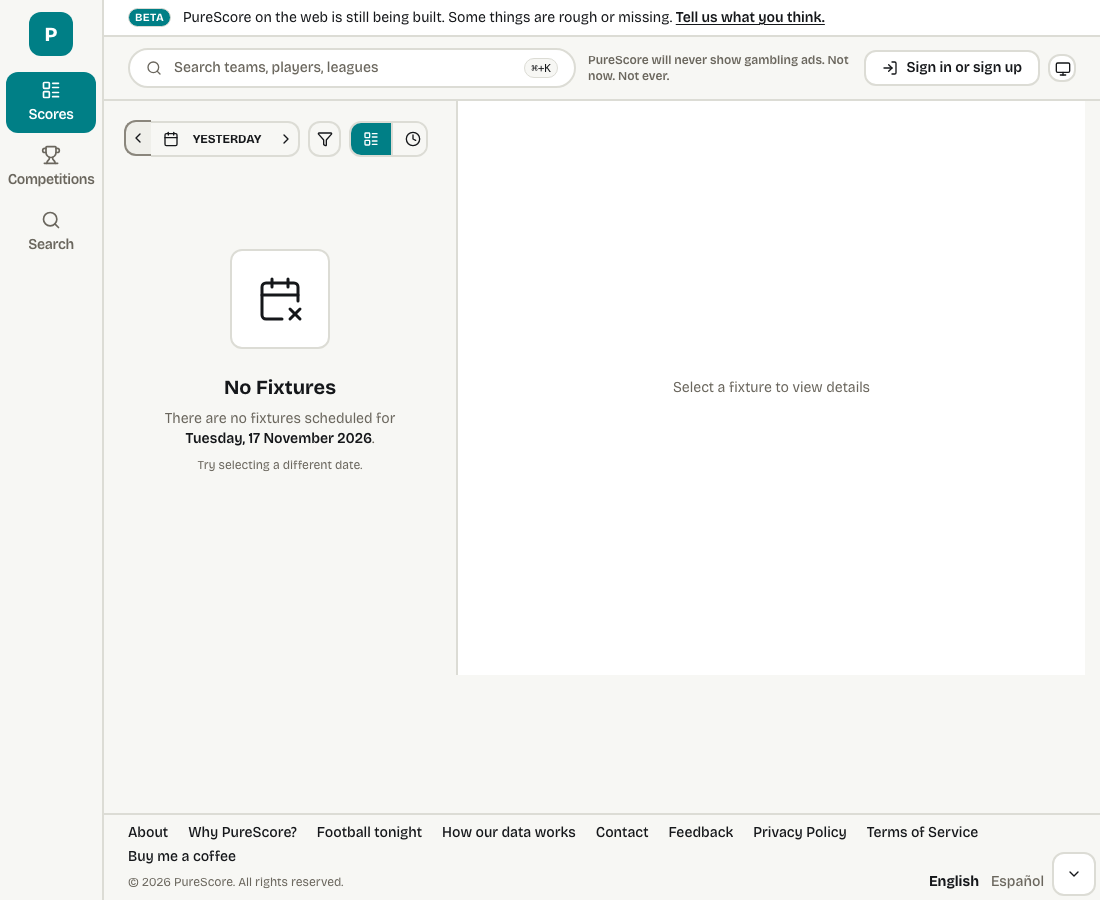
This is why checking coverage belongs near the start of the process. A service can meet your advertising requirement and still fail to provide the football information you need.
What your checks establish
The outcome is a setup assessed against your stated boundary, not a certification of every service or every future advert. Keep the publisher’s promise, the observations you made and anything you have not verified separate. If a gambling promotion appears on a route you intended to use, that conflicts with the requirement even if the score is accurate.
The screenshot documents one signed-out web screen. This guide does not certify other services, measure notification delivery or compare update speed. Recheck the relevant policy, coverage and channels when your needs change, or when a provider changes what it offers.
Sources
- UEFA: bet365 partnership scope for the 2024–27 Champions League cycle
- Apple: turn a website into an app in Safari on iPhone
- Google Chrome: install a supported web app on Android
- Apple: change notification settings on iPhone
- Google Android Help: app notifications and notification categories
- Apple: save and reopen a bookmark in Safari on iPhone
- Google Chrome: create and find bookmarks on Android
- Google Chrome: manage website notification permissions on Android
- Apple WebKit: Home Screen web-app notification permission and settings